



MMS, the system that carries attachments in a standard text, caps files at roughly 1 MB to 3.5 MB depending on your carrier, which is only a few seconds of video. Anything longer needs a path that skips MMS, like RCS (100MB) on iPhone or Android, iMessage between iPhones, or an iCloud or Google Photos link from either.
A video that stalls, comes back as “Not Delivered,” or arrives grainy has usually exceeded that limit. Carriers compress files to bring them under it, and past a certain size they reject the message instead.
How to best send a long video through text depends on your phone, your recipient’s phone, and whether both sides have rich messaging turned on. It can also change from one thread to the next, so the same video can send cleanly to one contact and fail to another, even on a new phone with full signal.
If you want to avoid issues when sending videos via your texting apps, you need to choose the right way to share the content. In this article, we’ll show you the most reliable ways to send videos through iPhone and Android, and help you decide whether attaching a video or sending a link is the better option.

Learn how Heymarket can help your business build strong connections with texting.
Book a demoHow long of a video can you text? Length and size limits
No messaging system measures video by duration, so there’s no fixed number of seconds of video you can send. The limit is based on file size, which comes down to the video’s resolution and frame rate.
A minute of 1080p from a recent phone runs around 65 MB, and 4K at 30fps is closer to 190 MB. That puts most clips well past what MMS accepts, since its limits were set long before phones recorded at these resolutions.
Other, more modern methods raise the ceiling, allowing you to send much larger video files:
- MMS: roughly 1 MB to 3.5 MB depending on carrier, or a few seconds of video before compression kicks in
- RCS: up to 100 MB, around 90 seconds of 1080p
- iMessage: no published ceiling, though large files still get compressed and the thread falls back to MMS when your recipient isn’t on iMessage
- iCloud, Google Photos, and cloud storage links: no practical limit, since the file never travels inside the message
Before you try to send a video, check the file size in Photos on iPhone or Google Photos on Android. If it’s more than a few megabytes, it’s better to skip MMS and move on to your device’s preferred messaging channel or send it as a link so it reaches the recipient in its original quality.
How to send a long video through text on iPhone
Which method works best depends on who’s receiving the video. Blue-bubble iMessage threads with other iPhone users handle short clips without much trouble. Green-bubble threads with Android users run on RCS when both sides have it enabled, and drop back to MMS when they don’t. For anything long enough to count as a video rather than a clip, an iCloud link works regardless of either.
Option 1: Share an iCloud link from Photos (best for longer videos and cross-platform delivery)
If your goal is to get the video delivered quickly and in good quality, iCloud links are usually the simplest path. iPhones can generate an iCloud link right from Photos, which you can paste into a text message like any other link.
To do it:
- Open Photos and find the video you want to send. Tap Share.
- Select Copy iCloud Link (your phone may take a moment to upload and generate the link).
- Paste the link into Messages and send it.
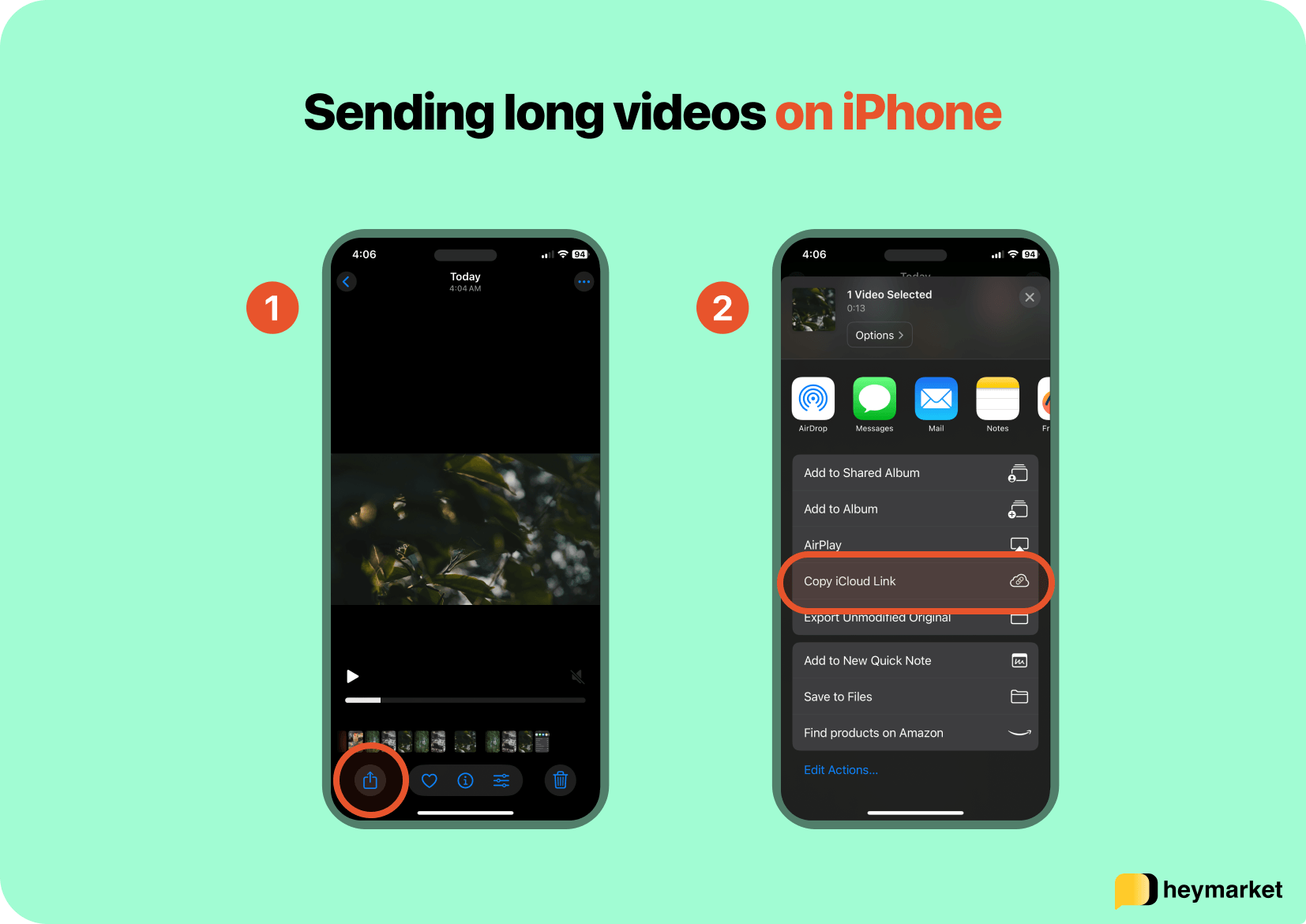 Note: iCloud links are available for 30 days, and you may need iCloud Photos turned on to see the iCloud link option.
This method is great when the video is longer than a quick clip, or when you’re texting someone on a different type of phone. Instead of relying on MMS, you’re sending something the recipient can open on any device.
Option 2: Attach the video in Messages (works best iPhone to iPhone)
Attaching works when the thread has room for the file. iMessage handles video far better than MMS, and shorter clips usually go through without issue. Threads with Android users depend on RCS, which raises the ceiling to 100 MB and sends at full resolution rather than compressing down to carrier limits.
To attach a video:
- Open Messages.
- Select the conversation.
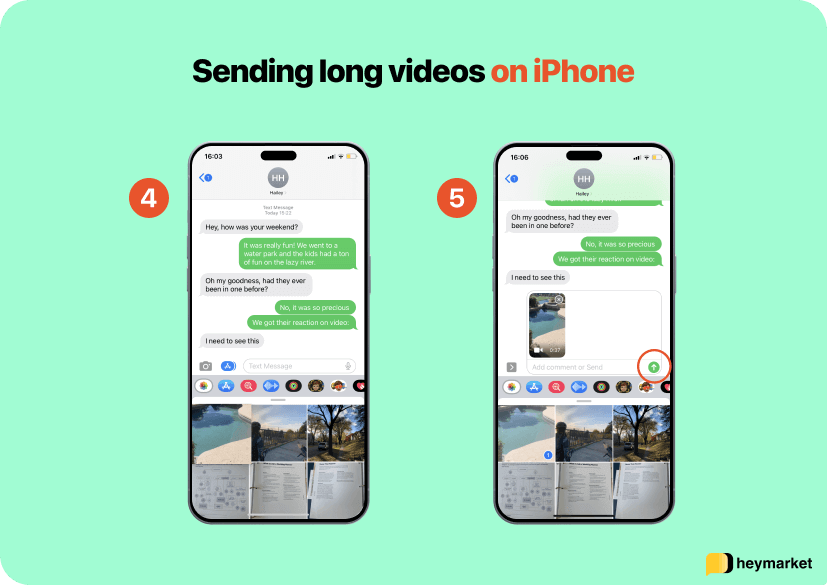
- Tap the Photos button (or the “+” menu, depending on your version of iOS).
- Choose your video(s), then tap Done (if the video doesn’t appear in the text box automatically)
- Press send once the video appears in the text box.
RCS needs iOS 18 or later and a carrier that supports it. Open Settings, tap Apps, then Messages, then RCS Messaging, and turn it on.
In a thread with an Android user, the compose field reads “Text Message • RCS” when it’s working. If it reads “Text Message” or “MMS,” the conversation is still on the old carrier path, and an iCloud link is the safer option for anything beyond a few seconds.
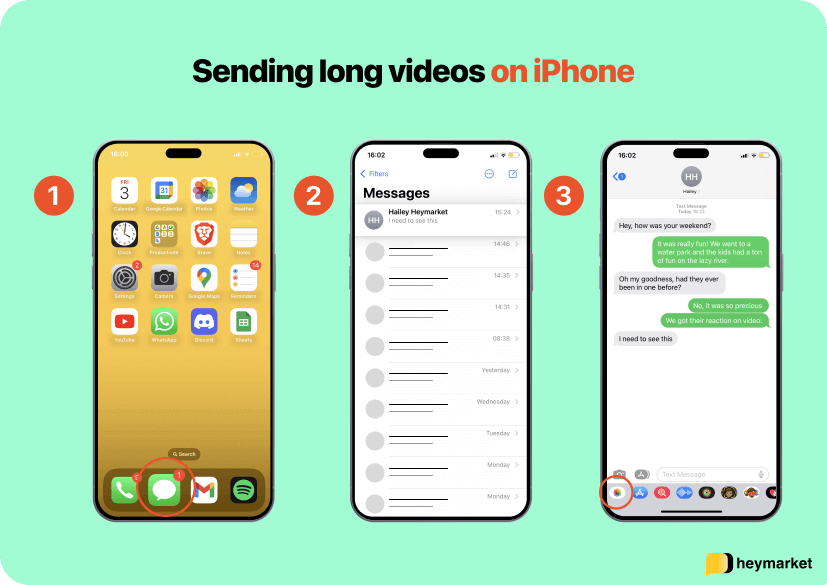
If your messages are green, the conversation may be using SMS/MMS—meaning you’re more likely to hit size limits or see quality drop. When that happens, switching to the iCloud link method is usually the safer choice.
Option 3: Use AirDrop if you’re nearby (fastest for full-quality transfer)
When you’re in the same physical location as your recipient, AirDrop is often the quickest way to share a large video at full quality. It doesn’t depend on texting at all, and it avoids any compression that can happen in messaging apps.
To use AirDrop:
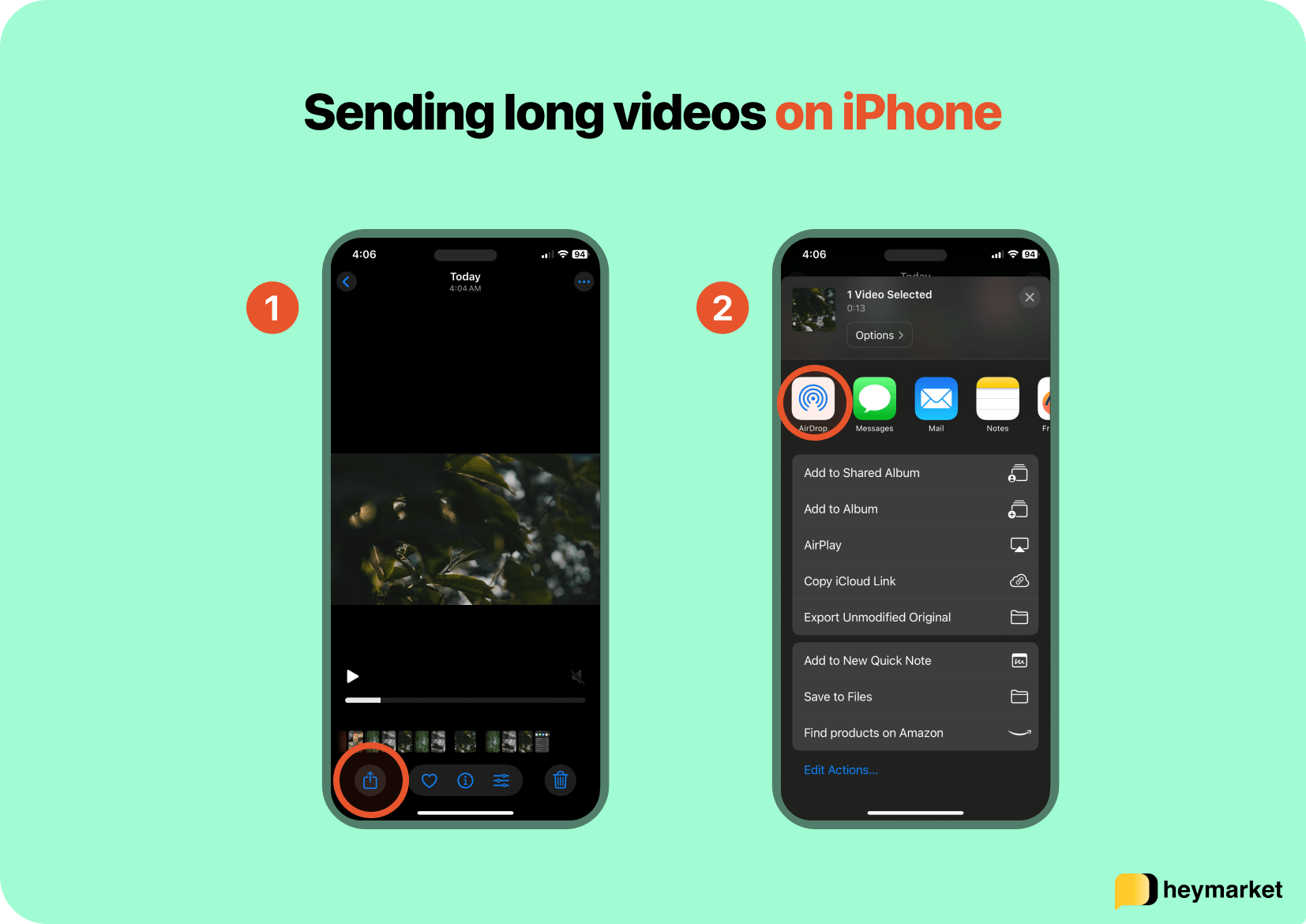
- Open Photos, select the video, and tap Share.
- Tap AirDrop and select the recipient.
If you’re trying to send a long video in person, AirDrop is usually the fastest option.
How to send a long video through text on Android
Google Messages runs on RCS by default on most Android phones, which raises the attachment ceiling to 100 MB and sends video at full resolution. When a thread can’t use it, because the recipient’s app or carrier doesn’t support it, the conversation falls back to MMS and the old size limits apply.
To check a conversation, look at the send button in Google Messages. It reads “RCS” when rich messaging is active and “Text message” when the thread is on SMS or MMS.
If the video is short and the conversation supports rich chat features, attaching it may work. Otherwise, link sharing is the safer option.
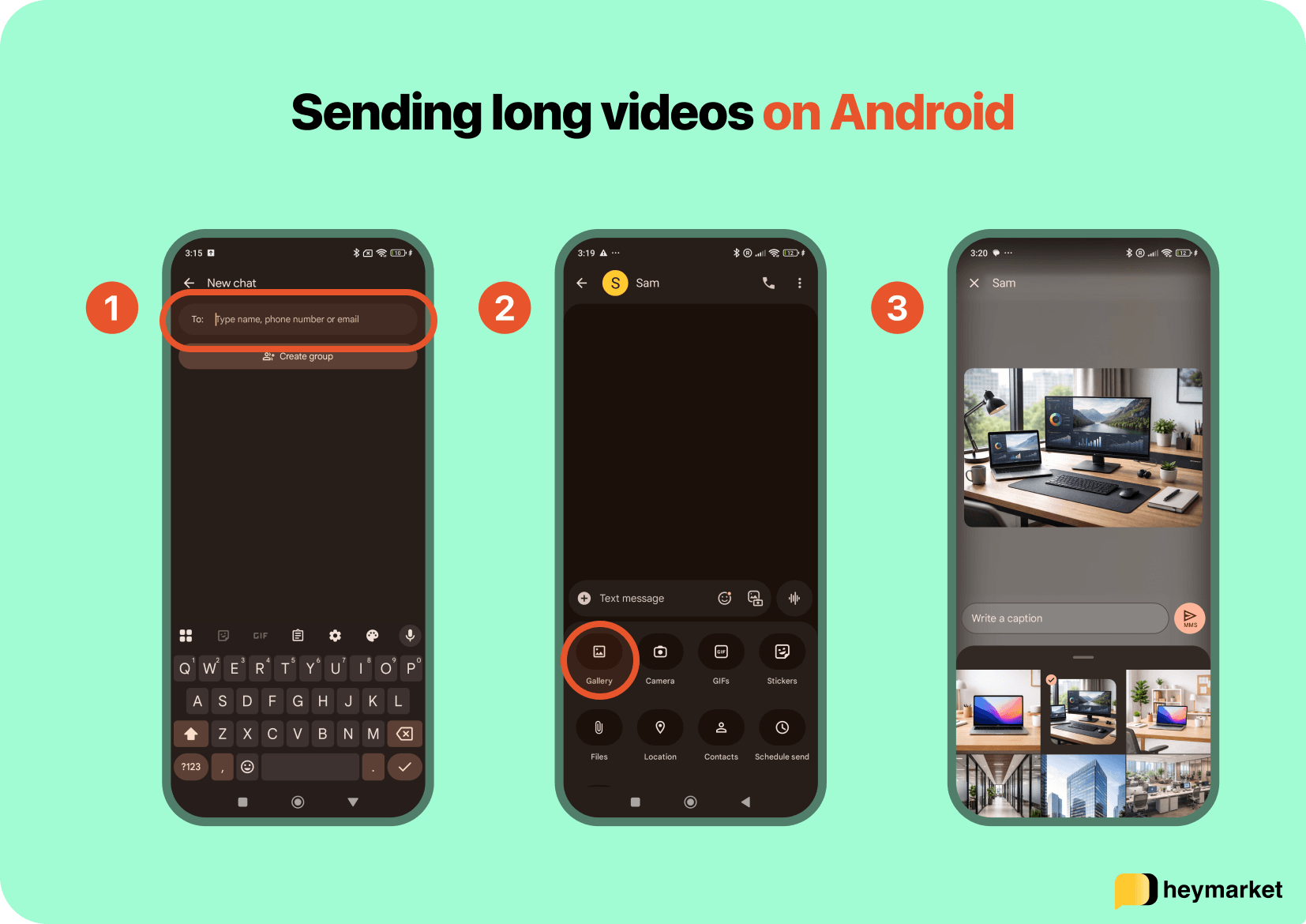
Option 1: Attach the video in Google Messages (best for shorter clips under 100MB on RCS)
If your video is under 100 MB and the thread is running on RCS, attaching it directly is the fastest option and sends at full resolution.
- Open your messaging app (such as Google Messages) and select the conversation.
- Tap the attachment or media icon.
- Choose the video and send.
If the message fails to send, takes a long time, or the video arrives blurry, the conversation is likely using MMS. When that happens, switching to a Google Photos link is usually faster than retrying the attachment.
Option 2: Share a Google Photos link (best for videos over a minute or exceeding 100MB)
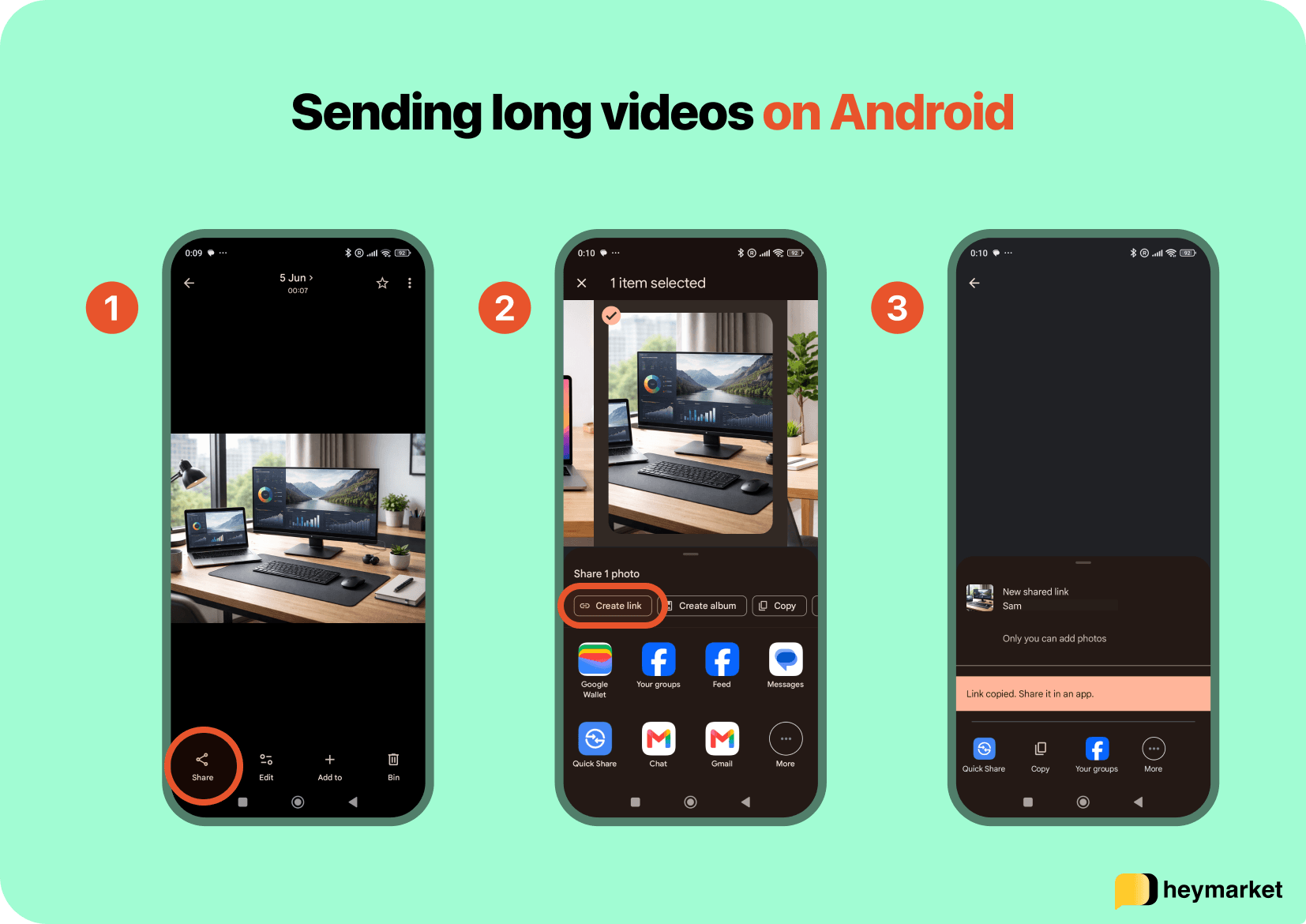
Sharing a Google Photos link lets your recipient open the video directly, without the text message carrying the file at all. It also ensures they can still watch the video, even without RCS enabled or if it exceeds 100MB.
- Open Google Photos and select the video you want to send. Then tap Share.
- Choose Create link or select a contact to generate a shareable link.
- Copy the link and paste it into your text message.
Sending a long video between iPhone and Android
It’s not necessarily more difficult to send long videos to an Android user from an iPhone, but it does require RCS to be active on both ends.
While Android phones using Google Messages have RCS on by default, iPhones need to be on iOS 18 or later, have a carrier that supports it, and have the setting enabled. That means proactively setting up your iPhone so you can talk to anyone, regardless of device.
When it isn’t active on both sides, the conversation runs on MMS and a link is the only method that doesn’t depend on the recipient’s setup. Send an iCloud link from the iPhone or a Google Photos link from the Android phone.
If you see a “Not Delivered” notification in any of your text threads, don’t keep retrying the attachment. Switch to a link and move on.
Other ways to share videos
If both you and the recipient already use the same messaging app—such as WhatsApp or Facebook Messenger—sending the video there may be straightforward, since those apps don’t rely on SMS or MMS to deliver media. Just keep in mind that this requires both people to use the same app, and it’s a different workflow than sending a video through standard text messaging.
Best ways to share a long video link
Once you decide to send a link instead of an attachment, the next question is where to host the video. The right choice depends on what you want the recipient to do: stream it quickly, download the file, or access it privately.
If you want the simplest viewing experience, choose an option that opens easily on any phone with minimal friction. If you need more control over access, choose a storage option that lets you manage permissions.
Google Photos or iCloud links
These are usually the fastest options when you’re sending from a phone, because they’re built into the device experience. They’re ideal for one-to-one sharing when you want the recipient to tap once and watch, without dealing with downloads or logins.
Cloud storage links (Google Drive, Dropbox, OneDrive)
Cloud storage is a better fit when you want more control—such as limiting access, sharing the same file with multiple people, or sending a downloadable version of the video. This is often the most practical option for longer files that someone may need to save, forward, or reference later.
YouTube (unlisted or private)
For very long videos, YouTube can offer the smoothest playback experience because it’s designed for streaming. Uploading the video as unlisted or private can also be useful when you want a clean viewing experience without making the video broadly discoverable.
How to send videos through business texting
Business texting is one of the most efficient ways to communicate with customers and prospects—whether you’re sending reminders, updates, confirmations, or support follow-ups—once you’ve captured the right opt-in.
When it comes to video, the main decision is whether you’re sending a very short clip or something longer. Because MMS has strict size limits, we recommend attaching only very short videos (under 1 MB). For longer videos, like demos, walkthroughs, or onboarding content, it’s more reliable to send a direct link to the video instead.
Here’s how you can send videos as a business:
- Access your business texting platform.
- Navigate to your chats.
- Start a new conversation or access an existing one.
- Add the video to the message
- For files, press the attachment button and select the video from your library.
- For links, paste the link to the hosted video directly in the composer.
- Send the MMS to your contact.
You can also send mass texts with videos:
- Access your business texting platform.
- Navigate to Lists, then create or select the list of contacts you want to send the video to.
- Note: Make sure they’ve opted in to receive text messages from you.
- Create a new text and click the attachment button to add a video, or paste the direct link.
- Schedule the text or send it immediately.
You can also include videos in your text messaging drip campaigns by navigating to Campaigns, selecting a list, and then composing your series of text messages with the video attachments or direct link added on each applicable message.
Discover the right way to send a long video through text
Sending a long video through text doesn’t have to be a guessing game. The key is understanding that traditional text messaging—especially when it relies on MMS—was never built to handle modern video files reliably. That’s why attachments often fail, stall, or arrive heavily compressed, even when everything else seems fine.
The most consistent solution across iPhone and Android is to send a link for anything beyond a quick clip. If you do attach a video, keep it very short and expect that quality may be reduced. For business texting in particular, MMS works best for lightweight, under-1MB clips, while longer videos are typically better shared as a direct link so they open reliably across devices.
Want a better way to manage business texting? Sign up for a free demo to learn how Heymarket helps teams share video links with confidence.
FAQs: How to send long videos through text message
Why is my video blurry after I text it?
Carrier compression. When a video is larger than MMS allows, the network shrinks it to fit rather than rejecting it, and the resolution it loses doesn’t come back.
Sending over RCS or iMessage avoids compression at these file sizes, and a link avoids it entirely because the recipient opens the original file. If you have to attach it in an MMS thread, compressing the video yourself gives you more control over the tradeoff instead of leaving it to the carrier.
How do I send long videos through text when they’re over a minute?
Length isn’t really the constraint; file size is, so what matters more is how much data a minute of your footage takes up. A minute of 1080p runs around 65 MB, which rules out MMS immediately. RCS handles it at up to 100 MB (around 30 seconds at 4K) on both iPhone and Android, and iMessage handles it between iPhones. Past a few minutes, or on any thread you’re not sure about, send an iCloud or Google Photos link instead.
Are there any apps that make sending long videos from iPhone easier?
Photos already does the job through a copied iCloud Link, so a separate app is rarely necessary. But if you and the recipient both already use a third-party app, like WhatsApp, Signal, or Telegram, you can use them to send video over the internet rather than the carrier network, avoiding MMS limits entirely.
Alternatively, cloud storage apps like Dropbox, Google Drive, and OneDrive are the better choice when the video needs to stay available or be shared with several people.
What’s the longest video you can send on iPhone?
Between iPhones on iMessage, there’s no defined length limit for a video. However, some messages may be compressed automatically.
When sending to an Android recipient, length limits depend on the type of thread. You can send up to 100 MB over RCS (generally 30–90 seconds), or a few seconds over MMS.
Alternatively, you can just send an iCloud link, which has no meaningful ceiling, making it the answer for anything you’d call a long video rather than a clip.
What’s the longest video you can send on Android?
Up to 100 MB in Google Messages when the thread is on RCS, which is roughly 90 seconds of 1080p or 30 seconds of 4K. On an MMS thread, it drops to a few seconds.
Google Photos links remove the limit, and they’re the more reliable option when you don’t know whether the recipient’s phone supports RCS.