x
Sign Up
Free trial. No credit card required.
Email already taken. Please sign in or try another email.
I agree to the terms of service and privacy policy.
Please agree to the terms of service and privacy policy to continue.


Free trial. No credit card required.
Please check your email.
We've sent you an email. Please check your inbox and follow the link provided to verify your email address.
Learn how Heymarket can help your business create personalized conversations at scale.
Book a DemoManage your Heymarket inboxes and campaigns from Claude, ChatGPT, Cursor, or any other MCP client, in plain language and without switching tabs.
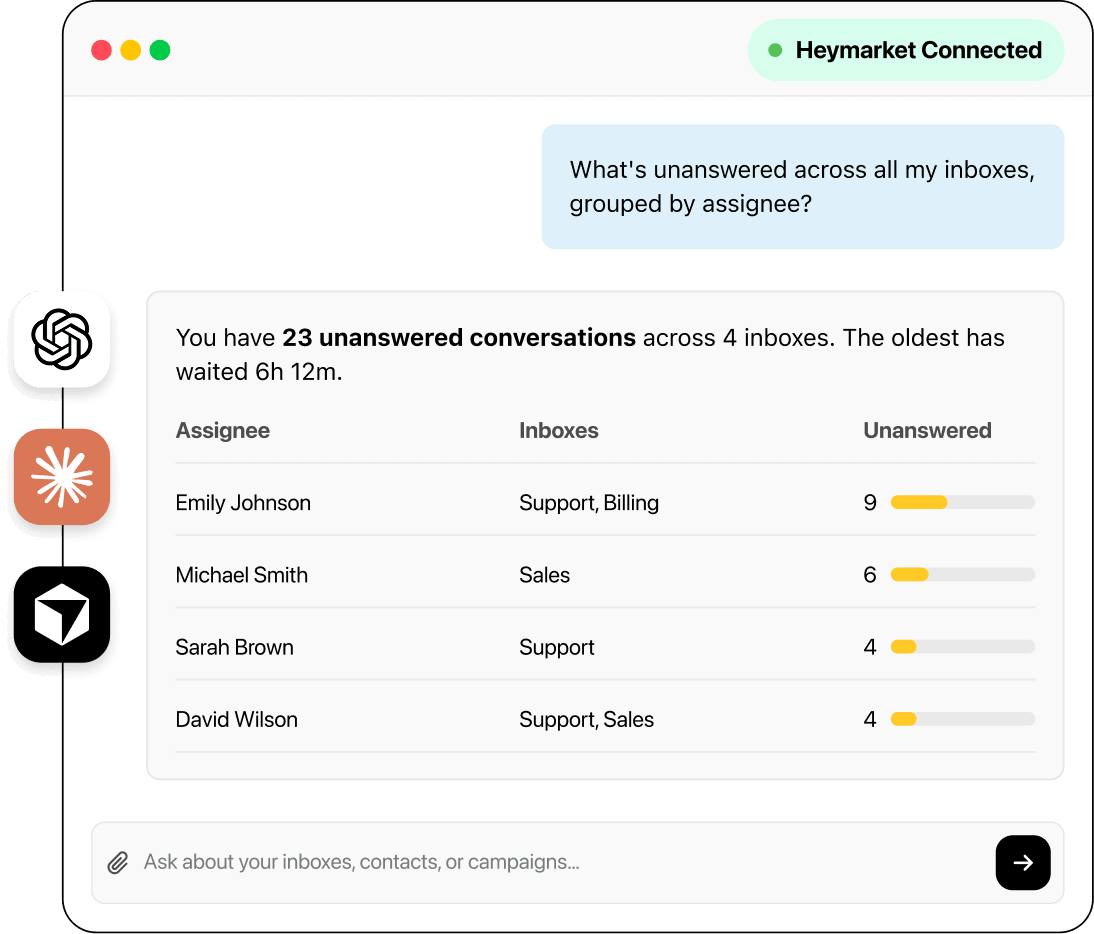
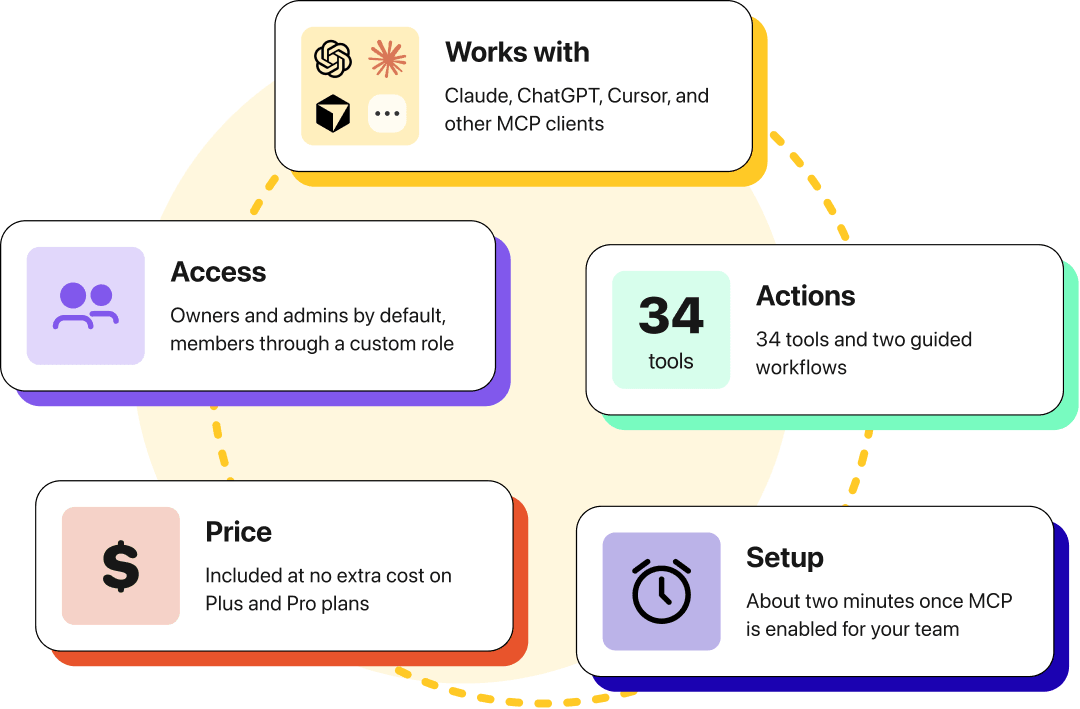
Heymarket builds and maintains its own Model Context Protocol (MCP) server alongside the product, so your AI assistant connects to it directly. Once connected, your assistant works inside your Heymarket team with the same inbox access and permissions you have. It reads and writes your live data, so there’s nothing to sync.
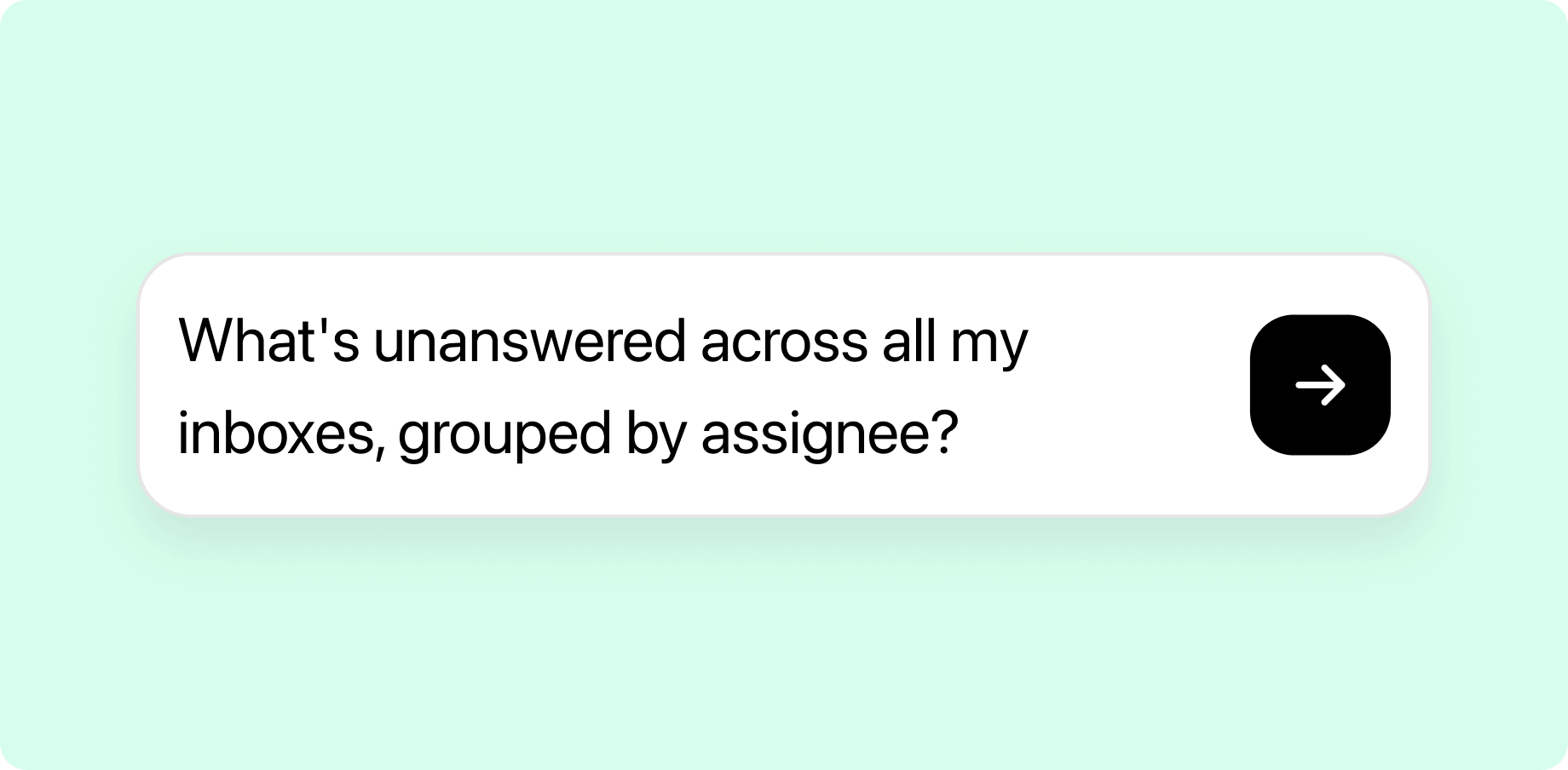
Find the conversations that have waited longest, count what’s unanswered by assignee or inbox, then assign or transfer them. It works across every inbox you belong to at once.
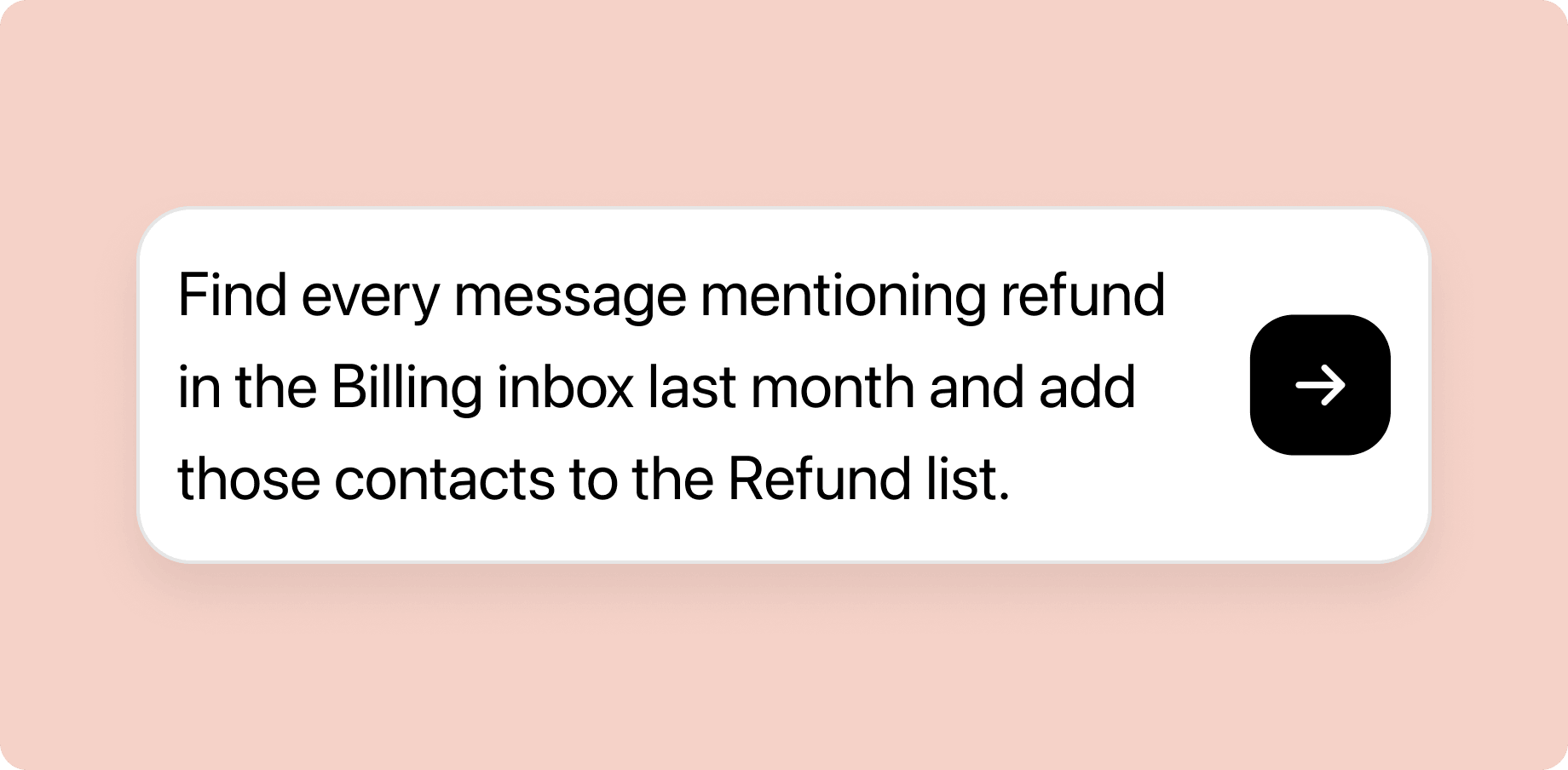
Search message text across your inboxes by keyword, inbox, and date range, then pull the full thread when you need the context behind a match.
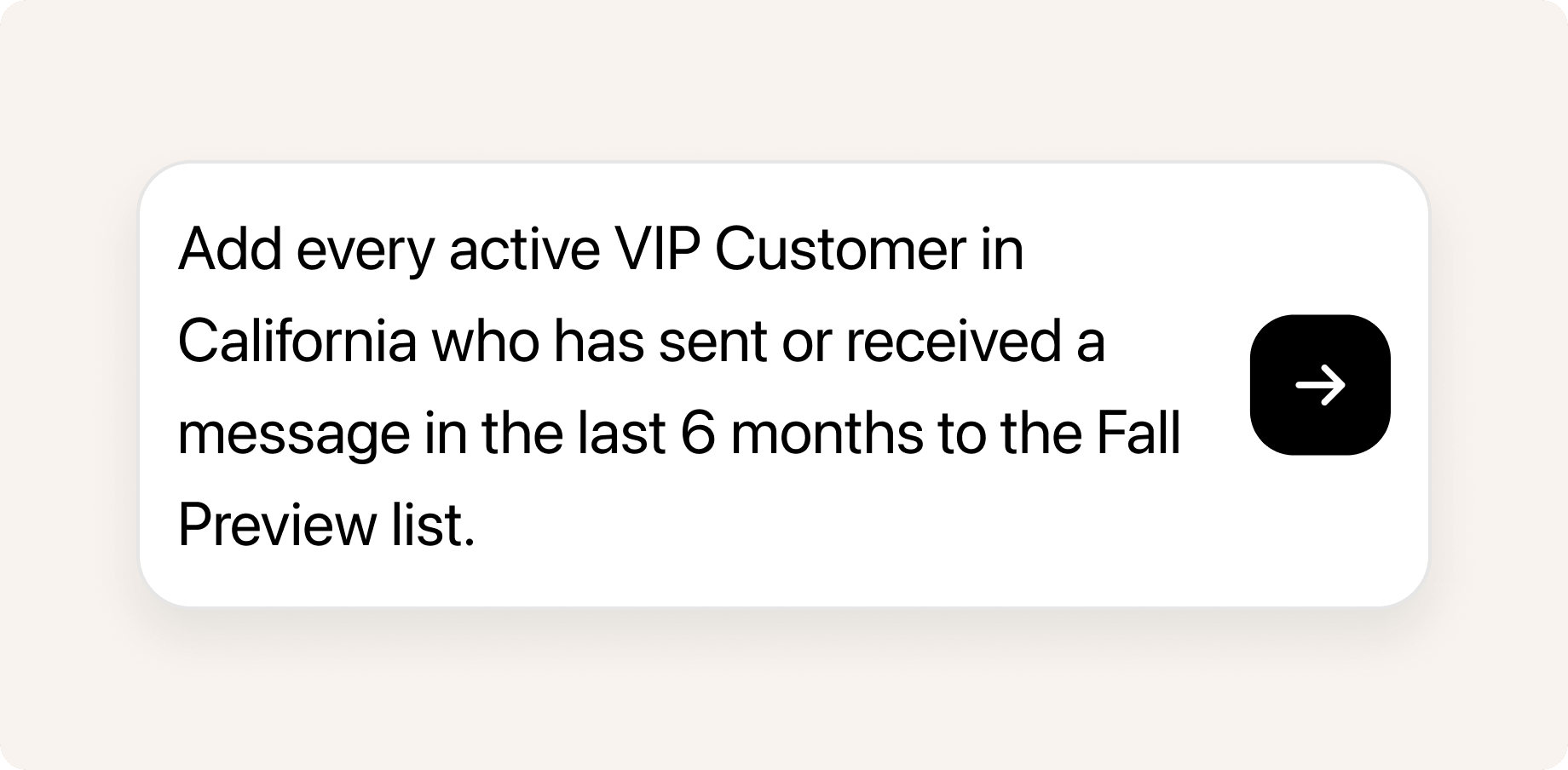
Search contacts by tag, custom field, list membership, or opt-out status. Your assistant can create and update records, then add matches to a list, up to 500 at a time.
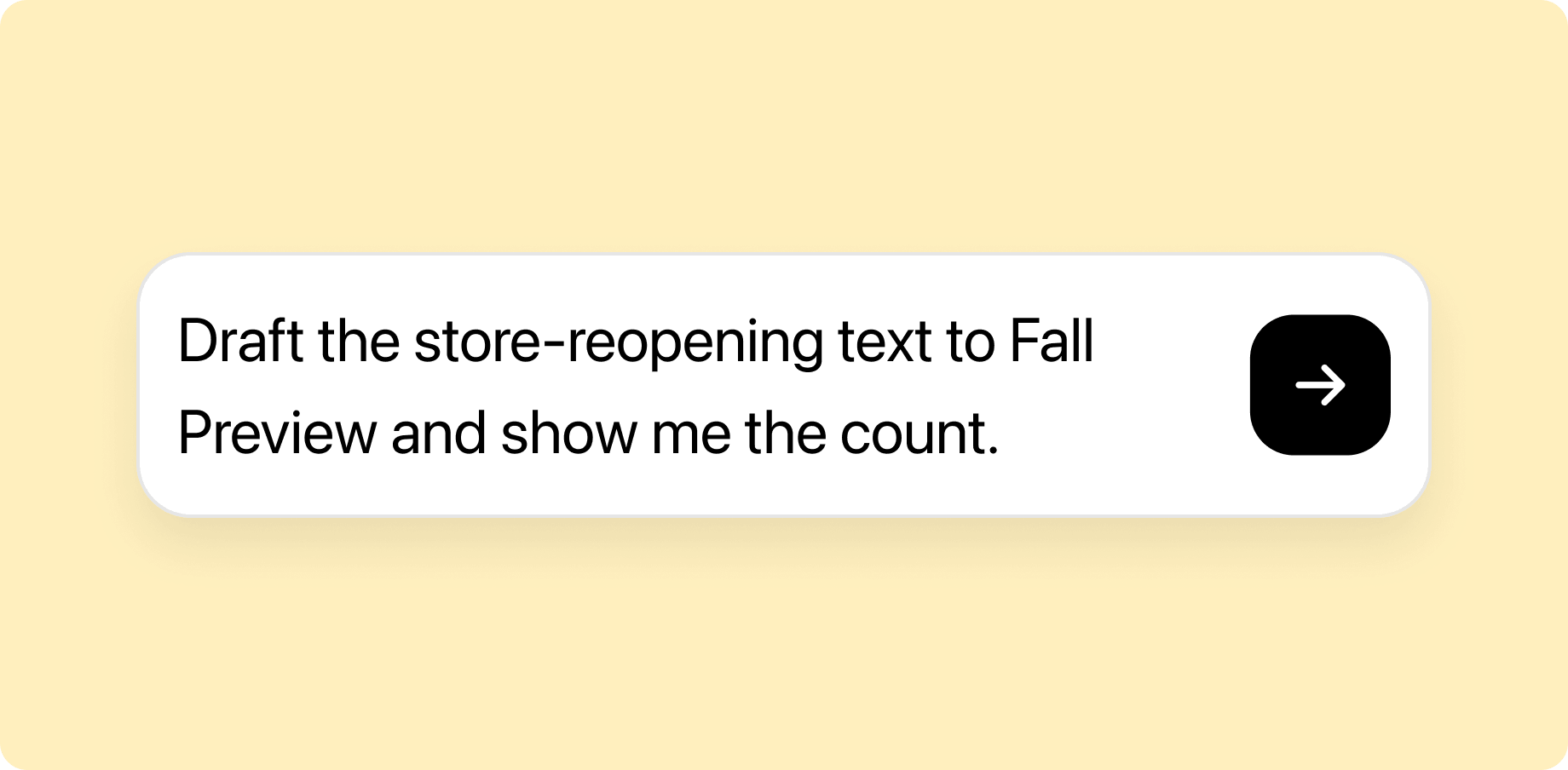
Draft a broadcast and check the recipient count, already filtered for opt-outs, next to a message preview. When it looks right, submit it for an admin to approve.
Every broadcast passes three checks before it reaches a customer, and the last one is a person. Heymarket enforces this on its own server, so no setting in your AI client can turn it off.
Note: One-to-one replies skip admin approval, so keep your client’s confirmation prompt turned on for sends.
The assistant builds a draft, but doesn’t send it. You see a message preview and the recipient count—excluding opt-outs—with sample recipients listed.
If any recipients opted out while you reviewed the draft, Heymarket rejects the submission and returns the updated number.
An admin or owner approves the broadcast before it sends. If two admins approve at the same moment, it still goes out once.
MCP follows every rule that governs the Heymarket API, plus a few that apply only here.

The assistant can't create API tokens, change roles, add itself to an inbox, or turn off compliance controls.

Each personal access token covers a single team and only the inboxes its creator belongs to.

Rate, recipient, sending, plan, and list-size limits work exactly as they do through the API.

Heymarket verifies your live role on the server each time, instead of trusting what the client reports.

Only roles with the MCP Access permission can create a token. Owners and admins have it by default, and admins can grant it to members through a custom role.

Turn off MCP Access for a role, change someone's role, or revoke a token, and access stops on the next request.
No developer required. During the beta, Heymarket turns on MCP team by team, so contact support if your team doesn’t have it yet. Your role also needs the MCP Access permission, which owners and admins have by default.
Your assistant uses this address to reach Heymarket.
In Heymarket, open Profile → Personal Access Tokens → Generate token. Name it after the device it will live on, choose your team, and copy the token that starts with hm_pat_. Heymarket shows the full token only once and stores a hashed copy, so save it before you close the window. Each person can hold one active token per team.
Follow the instructions for your client in the Heymarket docs, then fully quit and reopen it. Most clients only read MCP settings at startup.
Open a new chat and start with a read-only question. Your client should call list_inboxes and come back with your inboxes.
Copy a prompt into your connected assistant and swap in your own names. Asks run right away, and anything that writes asks you to confirm first.
See who's carrying what and what's close to breaching.
Trace what happened and route work to the right inbox.
One-to-one replies, each confirmed by you before it sends.
Build and clean up audiences without a spreadsheet.
Draft and stage broadcasts for admin approval.
Answer critical compliance and security questions.
What is the Heymarket MCP server?
MCP (Model Context Protocol) is an open standard for connecting AI tools to outside systems with structured, permissioned access. Heymarket hosts a remote MCP server, so any MCP-capable client can read your inboxes, search contacts and message history, send messages, and draft broadcasts on your behalf.
Which AI assistants can connect to Heymarket?
Any client that supports the Model Context Protocol, including Claude, ChatGPT, and Cursor. Claude Code, Cursor, and the ChatGPT desktop app connect directly to https://mcp.heymarket.com/mcp over HTTP. Claude Desktop connects through the open-source mcp-remote bridge, which needs Node.js 18 or later. ChatGPT on the web can’t add a custom MCP server, so ChatGPT users need the desktop app.
How is this different from Heymarket AI Agents?
Heymarket AI Agents run inside Heymarket and handle customer conversations directly, such as answering questions or booking appointments. The MCP server connects your own AI assistant to Heymarket, so it can do inbox, contact, and campaign work on your behalf at your permissions.
How much does the Heymarket MCP server cost?
It’s included at no extra cost on Plus and Pro plans and is currently in beta. You’ll still need your own subscription for the AI client you connect.
Does Heymarket send my data to an AI provider?
No. The MCP server only exposes Heymarket actions, and the model runs in your AI client. Your client decides what to send the model, and Heymarket doesn’t forward your data to any model provider.
Can an AI assistant send messages to my customers on its own?
Not broadcasts. Every broadcast needs an admin or owner to approve it before it sends, and your AI client asks you to confirm one-to-one messages.
Do Heymarket personal access tokens expire?
No. A token stays valid until it’s revoked, and there’s no refresh step. To rotate one, revoke the old token, create a new one, and update your client configuration.
What can't the assistant do in Heymarket?
It can’t read or change billing, team settings, integrations, or user administration. Tokens can only be created and managed in the Heymarket web app under your own login.
Can I create a read-only token?
Not at the moment. A token always carries the full authority of your current role. For lower-privilege use, connect through a custom role based on Member with MCP Access turned on, rather than an admin account.
Is there still a REST API?
Yes. The MCP server sits on top of Heymarket’s existing capabilities and doesn’t replace the API. See developers.heymarket.com for the REST reference and the full MCP documentation.